

Texturing Workflow
Railroader’s shaders come in metallic and specular variants. The textures these shaders expect must be packed in a specific way. On this page we’ll show how to configure Substance Painter to export the necessary textures, although other texturing packages will support similar outputs.
Metallic is what we recommend for new content — it’s the smaller set of maps, which means less texture memory usage. You may choose to use the specular workflow instead; Painter can be configured to export for either.
Shaders is the reference for what goes where: which maps each shader takes, which channel holds which value, and the import settings they need. This page assumes you’ve read it and picked a variant, and covers the Painter side — configuring the project so it’s capable of producing those maps, and building an export preset that writes them.
Project Setup
Section titled “Project Setup”When you create a new Substance Painter project you will be prompted to select the mesh (FBX file), Project template, and Document resolution. We recommend that you choose the following:
- 3D mesh: (Your FBX file, low poly if you plan to bake high to low poly)
- Project template: Unity HD Render Pipeline (Metallic Standard)
- Document resolution: 2048x2048
- Normal map format: OpenGL (under Advanced Settings)
We select HDRP Metallic as the project template because this governs the texture export channels that are available to you, and Metallic is the most flexible and compact. Railroader runs on URP rather than HDRP, but it’s the Metallic half of that name that matters here — and this template pairs with the export preset described below.
If you have already created a project using the Specular workflow, you can export it using different settings for use with the Specular shader, as outlined below.
A full walkthrough of Substance Painter usage is beyond the scope of this document, but we will cover the most important parts.
The Metallic Export Preset
Section titled “The Metallic Export Preset”For users with a Metallic workflow Substance Painter project. Not sure? Check Texture Set Settings > Channels for “Metallic”.
Open File > Export Textures and switch to the Output Templates tab. Create a new preset and build these three outputs.
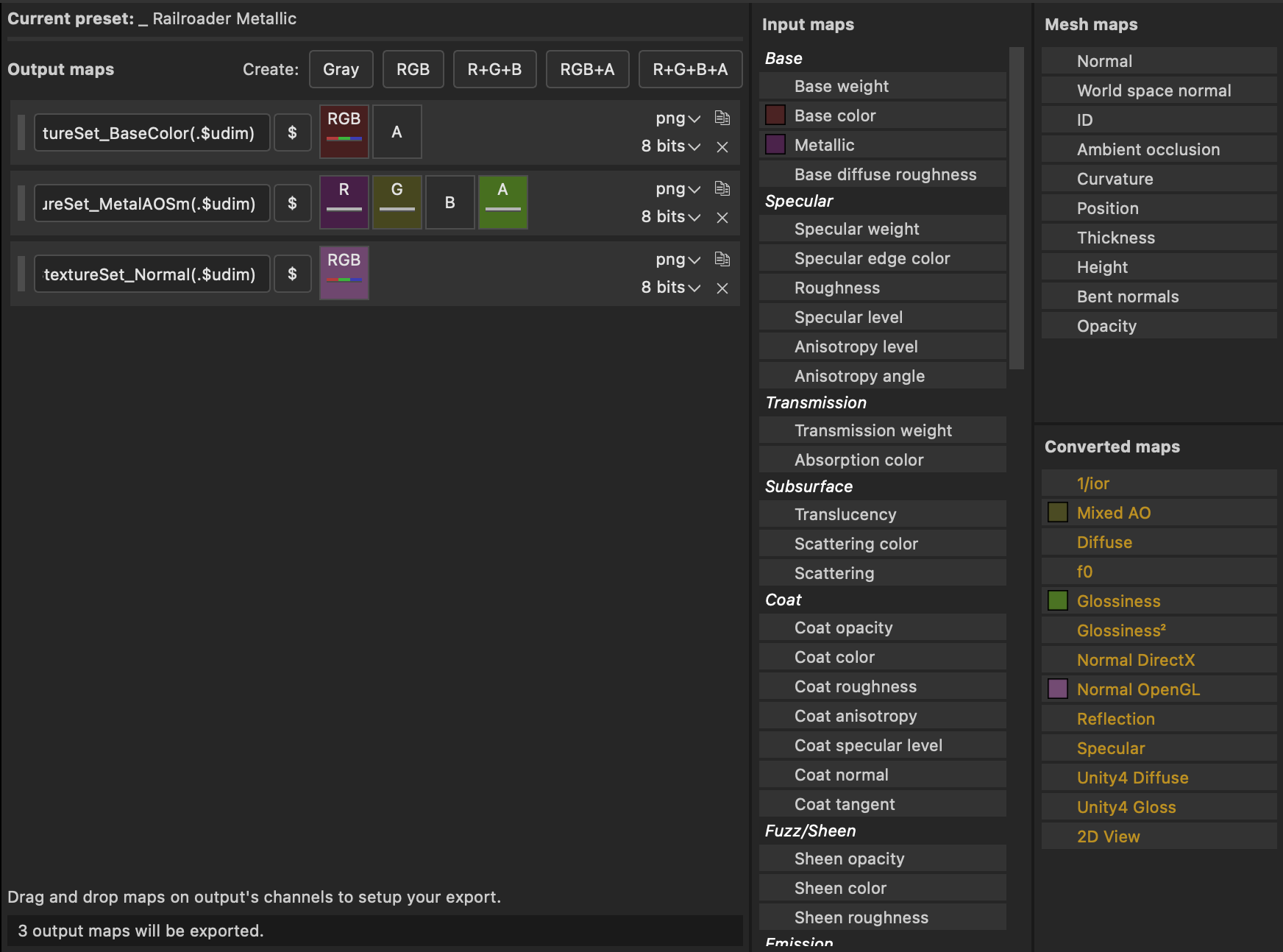
| Output map | Slot | Drag in | From |
|---|---|---|---|
$textureSet_BaseColor | RGB | Base color | Input maps |
| A | (empty) | ||
$textureSet_MetalAOSm | R | Metallic | Input maps |
| G | Mixed AO | Converted maps | |
| B | (empty) | ||
| A | Glossiness | Converted maps | |
$textureSet_Normal | RGB | Normal OpenGL | Converted maps |
Create the base color with the RGB+A button, the packed map with R+G+B+A, and the normal with RGB. All three export as png at 8 bits.
The green channel is why you can’t use a stock preset unchanged. Every built-in Unity metallic preset — in Painter and elsewhere — leaves it empty and writes ambient occlusion to a standalone _AO file, which Railroader never reads.
Three of the picks above are deliberate:
- Glossiness, not Roughness. Smoothness is inverted roughness, and Painter’s converted maps already include the inversion. Dragging in Roughness and inverting it by hand somewhere else is a step you don’t need.
- Mixed AO, not the Ambient occlusion mesh map. Mixed AO combines the baked mesh map with occlusion your material stack contributes; the raw mesh map only has what the baker saw.
- Normal OpenGL, not Normal DirectX. Unity is Y+. This converted map guarantees the right orientation on the way out, whatever the project’s normal map format is set to.
The two empty slots are deliberate as well. Base color alpha goes unread because these shaders are all opaque, and the packed map’s blue channel isn’t sampled today — leave it black rather than putting something there, since that could change.
The $textureSet in each name is a naming flag; the $ button beside the name field lists the rest ($mesh is the other useful one). Nothing in Railroader parses these names — pick whatever keeps your pack legible.
The Specular Export Preset
Section titled “The Specular Export Preset”For users with a Specular workflow Substance Painter project. Not sure? Check Texture Set Settings > Channels for “Specular”.
Same dialog, four outputs:
| Output map | Slot | Drag in | From |
|---|---|---|---|
$textureSet_Diffuse | RGB | Diffuse | Input maps |
| A | (empty) | ||
$textureSet_SpecularSmoothness | RGB | Specular | Input maps |
| A | Glossiness | Input maps | |
$textureSet_AO | Gray | Mixed AO | Converted maps |
$textureSet_Normal | RGB | Normal OpenGL | Converted maps |
Create them with RGB+A, RGB+A, Gray, and RGB respectively; png at 8 bits throughout. The diffuse map goes in the shader’s MainTex slot.
The occlusion map only needs green. The shader samples nothing else from it, so a Gray output is the simplest thing that works — Unity expands a grayscale file to equal RGB, which puts your AO in green as required. There’s no benefit to spending a full RGB output on it.
Unity Import Settings
Section titled “Unity Import Settings”Shaders has the canonical table. Two things are worth repeating here, because they’re the ones that bite on the way out of Painter:
Uncheck sRGB on the metallic packed map. It’s pure data, Painter writes it linearly, and Unity’s decode curve drops metallic and smoothness well below what you authored while darkening AO — the material reads dull and grubby compared to Painter’s viewport. This is the most common mistake in this pipeline, since sRGB is on by default.
The specular map is the opposite case and needs sRGB on: its RGB is specular color, Painter writes it sRGB-encoded, and Unity has to decode it. That it also carries smoothness in its alpha changes nothing — Unity never applies the sRGB curve to an alpha channel.
Confirm any map carrying smoothness keeps its alpha — Alpha Source set to Input Texture Alpha, and a compression format that carries an alpha channel. Losing it takes your entire smoothness map with it.
Authoring Notes
Section titled “Authoring Notes”Colorable bodies want a near-white base color. If a car’s paint is driven by a style or a RendererGroup, the game sets _BaseColor at runtime and the shader multiplies your texture by it. Author the albedo close to white and let the tint do the coloring, or every style comes out darker and more muted than the color says. See Freight Car Intermediate Features.
Paint map control textures are not PBR maps and don’t belong in either preset — they’re signed distance fields with their own import rules. See Paint Maps.
Troubleshooting
Section titled “Troubleshooting”Painter won’t export, or maps come out empty
Section titled “Painter won’t export, or maps come out empty”The project is missing a channel the preset reads — most often the metallic preset pointed at a specular/glossiness project, which has no Base color or Metallic to give. See Project Setup.
The material looks dull and dirty compared to Painter
Section titled “The material looks dull and dirty compared to Painter”sRGB is still checked on the metallic packed map. Uncheck it and reimport.
Specular highlights are too bright or too saturated
Section titled “Specular highlights are too bright or too saturated”The opposite mistake — sRGB is unchecked on the specular map, so Unity is reading sRGB-encoded color as though it were linear.
The surface is uniformly glossy and ignores the roughness you painted
Section titled “The surface is uniformly glossy and ignores the roughness you painted”The alpha channel is gone, so the shader sees a constant. Either the map exported to a format without alpha (jpg), or Unity dropped it on import — check Alpha Source and the compression format.
Everything is far shinier or far flatter than authored
Section titled “Everything is far shinier or far flatter than authored”Roughness went into the alpha slot instead of Glossiness, so the map is inverted. Swap it for the Glossiness converted map.
No ambient occlusion anywhere
Section titled “No ambient occlusion anywhere”For metallic, the green channel of the packed map is empty — usually a stock Unity preset that wrote AO to its own _AO file. Drag Mixed AO into G. For specular, check the occlusion map is assigned at all, and that mesh maps were baked.
Shading looks inverted in crevices, or lit from the wrong side
Section titled “Shading looks inverted in crevices, or lit from the wrong side”DirectX normals. Re-export with the Normal OpenGL converted map.
See Also
Section titled “See Also”- Shaders — the channel-packing and import-settings reference for every shader
- Blender Workflow — the model side of the same trip
- Creating a Freight Car (Basics) — where these textures get wired into a material
- Paint Maps — multi-color paint schemes from a control texture
© 2026 Giraffe Lab LLC. All rights reserved.